How to setup the payperview in embed mode

The embed mode means that all data are stored on html5 chat servers. This mode is easy to be run and do not demand any coding knowledge. It can be setup in 5 minutes. Here is step by step process

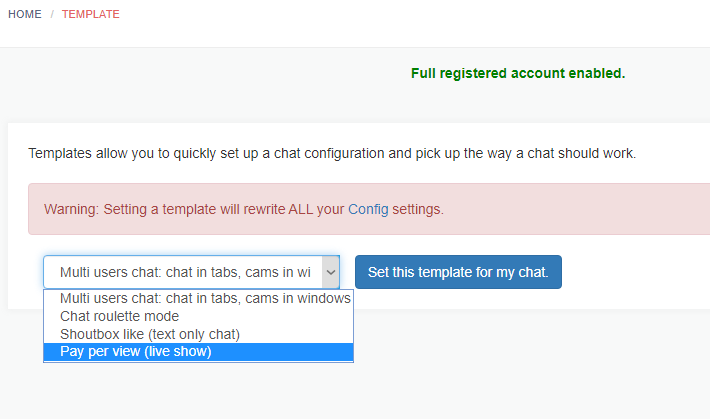
In templates, choose the pay per view template
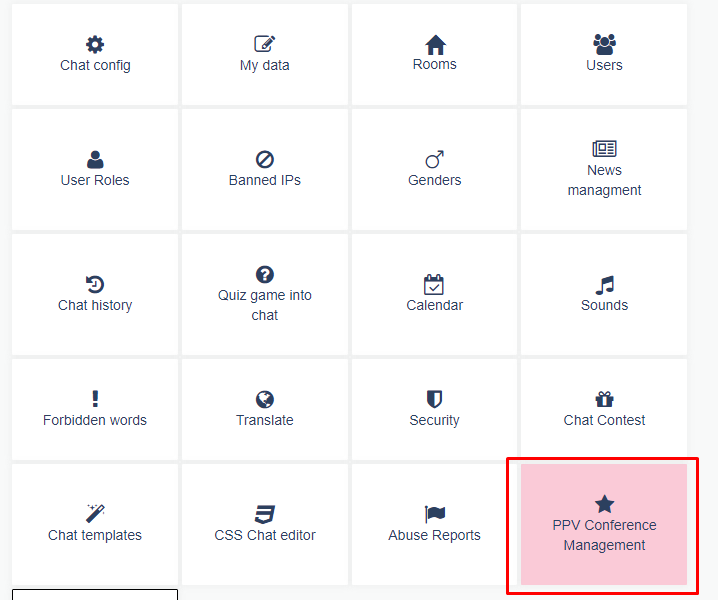
  • Go back to main menu : a new pink button called ” PPV Conference Management ” should appear in your global menu at the bottom.
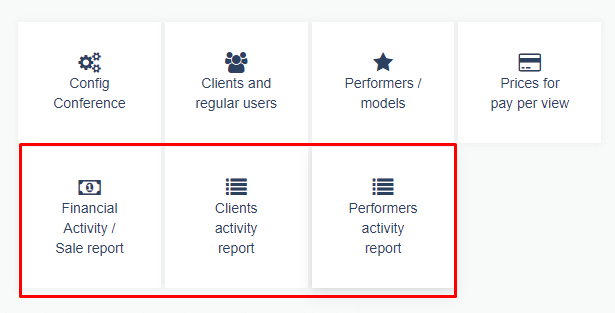
A new button menu appear !
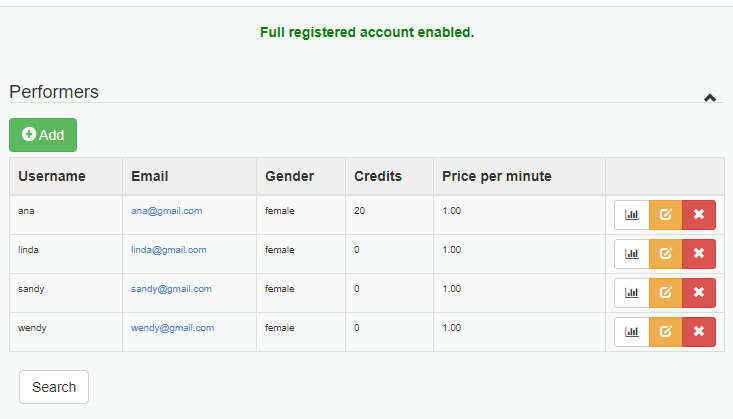
  • Go to chatadmin->PPV conference->performers and create (or edit) users that will be performers (role must be setup to performer). Make sure performer has photos (you can upload performers’ photos)
Edit/add performers
  • Then, on your website, you must then prepare 2 HTML or PHP pages for the chat:
  • Page where performer will enter the chat
    Ex: performer.php that will contain that script:
    <script src="https://html5-chat.com/script/xxxx/"></script>
    where xxxx is your webmasterid (you will find it in your chatadmin console)
    When you open that page, you should find performer’s login
  • Page when user will enter the chat:
    Ex: user.php that will contain that script:
    <script src="https://www.html5-chat.com/ppv_listing/xxxx"></script>
    where xxxx is your webmasterid (you will find it in your chatadmin console

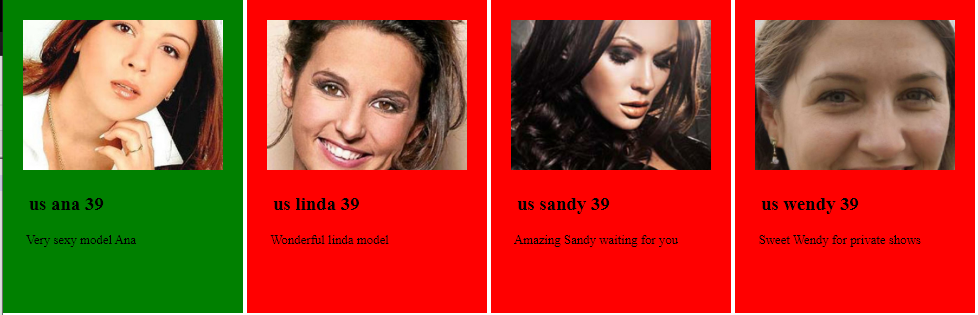
The user script will display the list of all performers and their photos you have added with their status. If a performer is online, she will appear in green and user will be able to click her photo to enter her room.

List of models: green is online, red is offline, yellow is busy.

And that’s all: you are able to enter now as performer and as user.
When user clicks the green available mode, he enters that model room.

User Payment process and credits

You defined prices in your config panel. When user wants to purchase credits, he press the “purchase credits” button and a popup displays your prices. When he wants to purchase some credits, he will be redirected to the paypal account you also defined in your config panel.

You will receive 100% of that amount (we don’t take any commission).

Performers payments

That’s your duty to pay the models. You get performers reports inside your PPV Conference Management that includes private shows and tips a performer has received.
If you need to update credits, just go to users or performers data and you can edit the credits field.

Reports available in your payperview panel.

Summerizing it all

  • The embed mode is very simple to be setup. You setup your paypal email, define credits prices .
  • You add performers and setup the percentage an user will receive per purchased credit.
  • You create 2 pages : 1 for performer enter and one for user listing.
  • Public chat is free and private chat is paid. User can also send tips, credits to performer.
  • When user purchases credits, you will get the amount on your paypal account.
  • You also get some reports so you know how much you will pay to performer.
  • All this is simple and do not need any developer knowledge. If you have trouble, we are here to help you.

Customization

You can of course change the CSS of the chat and the listing page by injecting your own CSS.

template chat

Chat templates

Since html5-chat is growing and has new extra features every day, it becomes difficult to understand and have a global view of all features and options he offers: in order to simplify the usage of the chat, we decided to create ready to go chat templates

What are chat templates ?

Templates are ready to go configurations of the chat so you can quickly start with a ready to go chat feature. This allows you to avoid to configure the chat to make the chat work for you

What are the chat templates available ?

For now we have 3 ready to go templates:

  1. tabAndWindow:
    This is a classical multi users chat where new private chats are in separated tabs and where webcams open in drag-gable windows
  2. roulette
    This is a chat roulette mode. It picks up randomly an available user and plays his webcam. It is based on the chatroulette concept
  3. Shoutbox:
    A simple text only chat. It is based on the concept of shoutbox where people can quickly writes text messages.

Where to set up a chat template ?

You have to login into your chatadmin as usual and choose the right template. Be careful: This action will overwrite all configuration of your actual chat. This can also be a good way to reset or restore a messed configuration chat and start with a clean configuration.

New templates will be added continuously.

Html5chat for phpBB: Extension HTML5 Chat

You can now easily integrate your html5 chat into phpBB. Here are the steps:

Download

You can download the phpBB html5 extension form here

Requirements

phpBB 3.2.6-RC1+ PHP 7+

Features

Adds some preliminary data and a header link to a custom page.

Quick Install

You can install this on the latest release of phpBB 3.2 by following the steps below:

  • Create toxyy/html5chat in the ext directory.
  • Download and unpack the repository into ext/toxyy/html5chat
  • Enable HTML5 Chat in the ACP at Customise -> Manage extensions.

Uninstall

  • Disable HTML5 Chat in the ACP at Customise -> Extension Management -> Extensions.
  • To permanently uninstall, click Delete Data. Optionally delete the /ext/toxyy/html5chat directory.

License

GPL-2.0

How to add a web radio to your chat ?

What is a web radio ?

A web radio (also called internet radio), is a streaming service that allows you to broadcast your own radio through the web. Now days, it is very easy to start a free web radio over the web.

One of the most popular software to start a web radio is shoutcast

How to add it to your html5 chat ?

Once you have created your own radio, you will probably get an http links such as: http://mywebsite.com:8040/stream

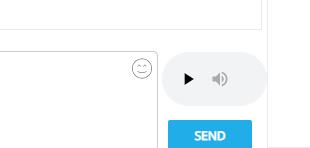
Just copy and paste that link into your config panel, under webradio input text. A small audio player should then appear at the bottom of the chat.

audio radio player in the bottom of the chat

Generate screen shot of url in the chat

What is a screenshot preview ?

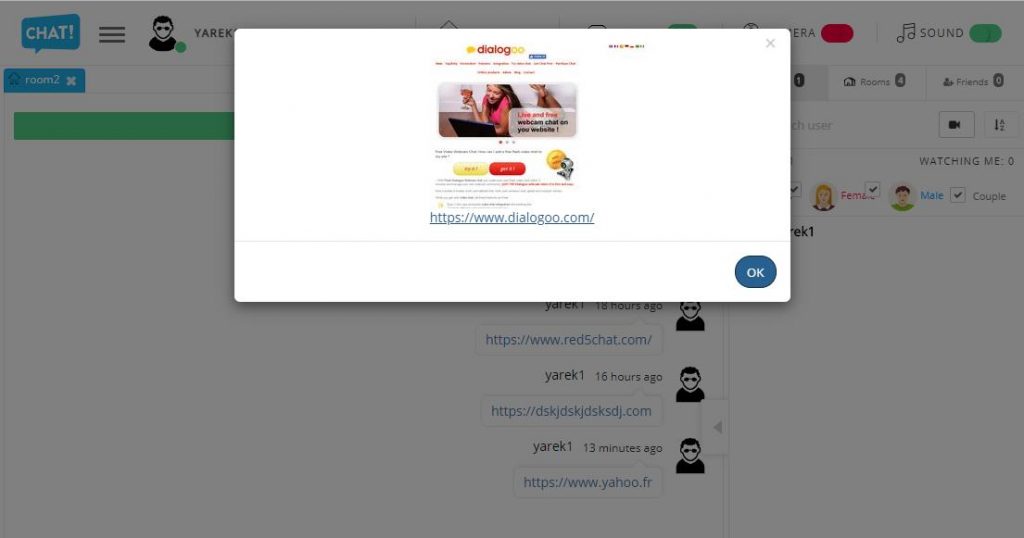
New feature: when sending an URL, it is now possible to generate a screenshot of the url : it means a picture of the url so users can preview the url before they decide to enter it.

This feature is only available for paid members of the chat.

How to activate it ?

You just need to go to your chatadmin panel and it will be present in the config panel.

How does it work ?

You just the screenshotUrl option and next time you will send an url, the chat will generate a screenshot of that url.

So when an user clicks on an url, he will get a modal popup before that previews the site, before he navigates to that url

Better chat news management

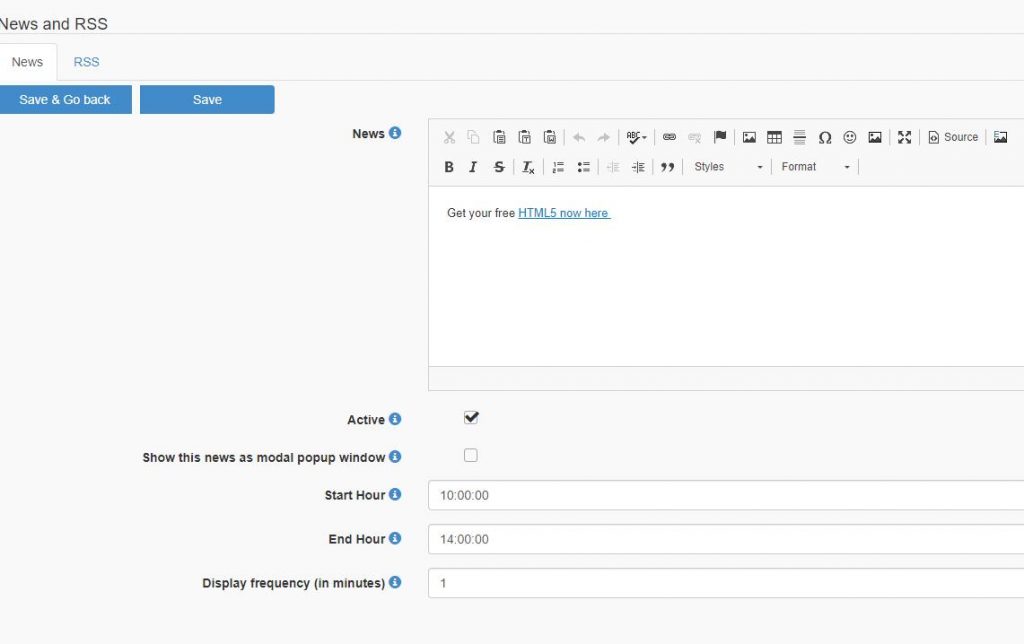
We have improved the news management system. You can set the time of the day when the news will be displayed.

news 1: between 12:30pm and 14:30pm
news 2: between 16:30pm and 18:30pm

You can also setup the frequency in minutes of each news
ex : news 1 will be displayed every 5 minutes.

Modal important news

For important news, you can also set up a modal news that will be displayed in a modal window when you enter the chat. This news will be displayed only once (ex: to announce an important event)

be displayed in a modal window when you enter the chat. This news will be displayed only once (ex: to announce an important event)

You can find these features as usually in your chatadmin panel

Better news announcement in chat

Live typing chat feature

What is live typing ?

Live typing allows you to read users messages before they send them to the chat. You can “spy” about what they do live type in.

Who should use it ?

Live typing should be used by admins and moderators so they can react before the message has been sent to users. They would be able to block (kick or ban) instltant messages before they have been posted to all membres.

How to enable live typing ?

Live typing can be activated in roles. Notice that user and guest roles cannot have that feature enabled. It should be used with parsimony and we are plenty conscious that this feature can privacy have drawbacks.

Once enabled, when an user is typing something, the live typing appears into a speech bubble next to his username in the user list on the right.

What kind of site should use that predictive feature?

Probably some fortune telling websites. However more generic chat can also use that feature to better chat moderation.

invitation

Invite user to watch my webcam

webcam photo

In chatadmin -> roles, you must check : “Can invite other users to watch his cam

User will be then able to send invitations to other users to watch his webcam.

User will be sent an invitation with 3 choices:

  1. accept: it will open the webcam
  2. deny: it will close the invitation
  3. mute: you will mute that user: this user will not be able to send you requests any more

By default, guest users cannot invite users to watch cam. And of course your webcam must be opened to onvite other users to watch at it !

joomlaSite

Joomla update

The html5 Joomla plugin was updated.

It now works with jomsocial and allows to retrieve avatar and gender

It corrects bugs and adds the correct role mapping:

It handles now the default Joomla roles

  • Administrator
  • Author
  • Editor
  • Guest
  • Manager
  • Public
  • Publisher
  • Registered
  • Super Users

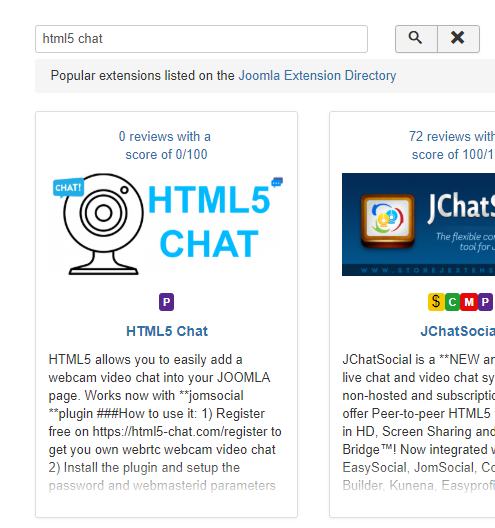
You can download it from: https://extensions.joomla.org/extension/html5-chat/

Installation process

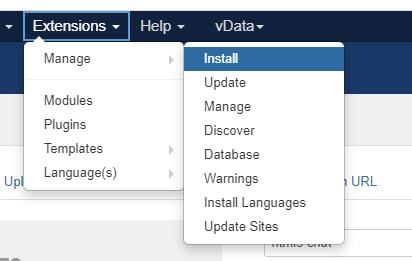
  1. In Joomla top menu: Extensions->Manage->Install
  2.  Choose the tab “install from URL” and set the value to  https://html5-chat.com/joomla/html5chat.zip
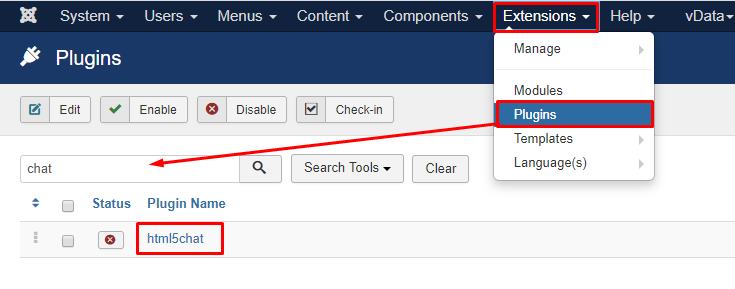
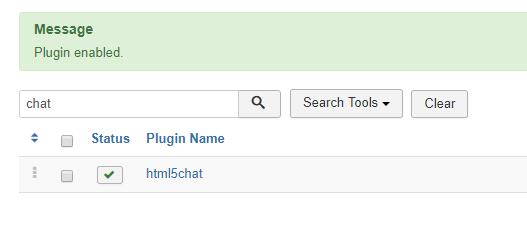
  3. Go to menu Extensions->plugin and find html5chat (or search for html5chat)
  4. Enable plugin that  html5chat plugin (status check)
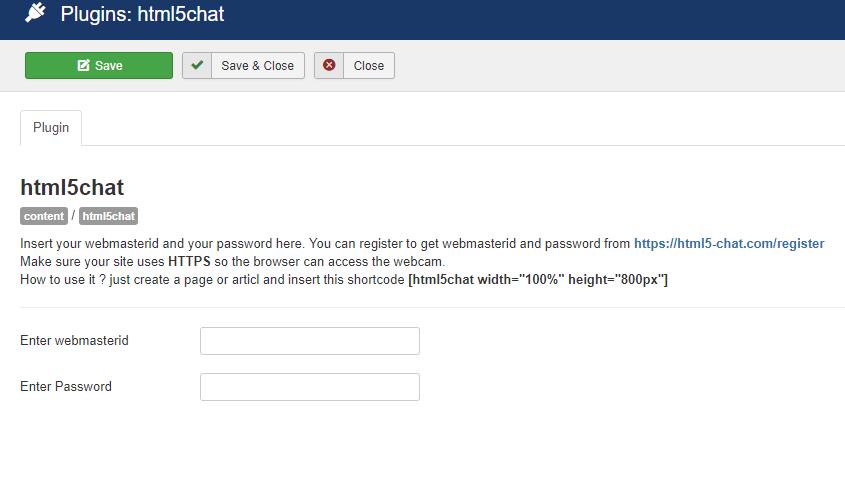
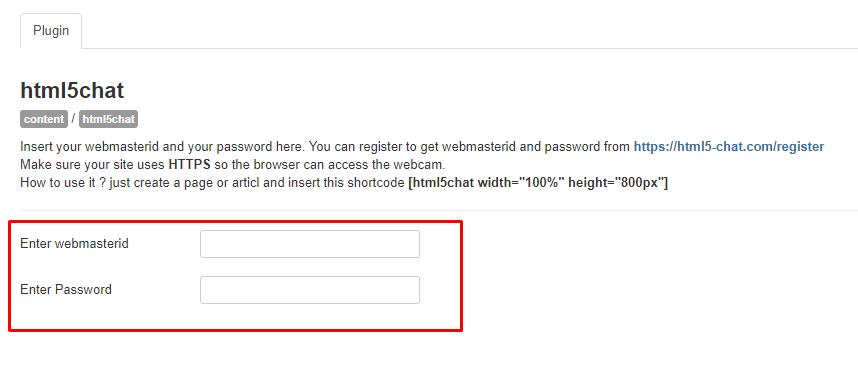
  5. click on html5chat plugin. You should then enter the webmasterid and Password
    enableJoomlaYou can get these data when you register the plugin at : https://html5-chat.com/register
  6. Create an article/page that will contain the chat. Inside that page, insert
    [html5chat width=”100%” height=”800px”]

You will now have the html5 chat inside that page article.

Step by step Joomla Installation

Oxwall and html5-chat integration

Official plugin

There is an official html5-chat plugin made by oxwall team (Skalfa LLC)

https://developers.oxwall.com/store/item/1554

which does the job.

How to make it full screen ?

This plugin embeds the chat into the 

<div class="owc_content">

and whose size can be too small for the chat. The idea would be to make it full screen (and just keep the header). For that you need to edit some files

in /ow_includes/config.php change the OW_DEV_MODE to false (this allows to empty cache), after the manipulation, you will set it back to true

define('OW_DEV_MODE', true);

in /ow_plugins/html5-chat-com/views/controllers/chat_index.html add these lines after {style}

{style}

.ow_content {
    position: absolute;
    top: 69px;
    left: 0;
    bottom: 0;
    right: 0;
    height: 100%!important;
}

div.ow_footer {
    display:none;
}

check it: if everything is ok, then set back the OW_DEV_MODE to false

define('OW_DEV_MODE', false);

To retrieve users roles in Oxwall, use:

$authService = BOL_AuthorizationService::getInstance();
$roles = $authService->findUserRoleList($userId);