banned

Better Banning

We enhanced the banning system: when using user registration, we ban per IP as before. But we also added banning per username, so banned user cannot reconnect with the same username once banned.

He needs to create a new user and change his username to be able to be back.

Webrtc IP leaking

There is a leak in webrtc that allows (under circumstances) to get the real IP of an user, even if he’s behind a VPN

We used that technique for banning to get the real IP from an user even if he’s using a VPN. This technique may stop working soon since major browsers may correct the IP leaking from webrtc very soon.

Silent mute

We have added a new tool for muting people called “silent mute“. It is an option you can find in your chatadmin / security panel. It adds an extra feature to the classical “Jail user” : the jailed user will not know that he was jailed and his messages will be seen to him as sent.

However he will be the only one user to receive them. The purpose of “silent mute” tool is to fake the jailed user so he thinks everything works fine : when an user is banned or jailed, mostly of time he tries to find a way to un-ban himself (use a VPN, take a new IP, create a new account)

message

Add an info message per role

We have added a new feature: messageWhenEntersChat per role

The goal of that feature is to add some welcome messages such as : “You are using the chat as guest. Please register to get more features“. This message can be a HTML message. This message is to inform user about his role restrictions or rights.

copyPaste

Paste image into chat

We have added a new feature: you can now paste images (shortcut : CTRL+V) directly into the chat (from the chat input)

This is the same action as choosing an image and uploading it.
You can find that new features in your chatadmin / roles. By default it is enabled for admin, moderator and dj roles.

If you want to disabled that for a role, set timeBeforePasteImageAgain to 0 or set that to number (in milliseconds)

ex: 5000 = users can paste image again after 5 seconds (5000ms = 5s)

Text effects

We have added new text effects per role:

You can now enable or disable per role text effects : go to roles and check “Can use extra CSS for fonts

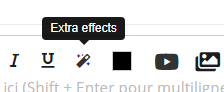
Once checked, on your chat you will have a new icon in the text bar

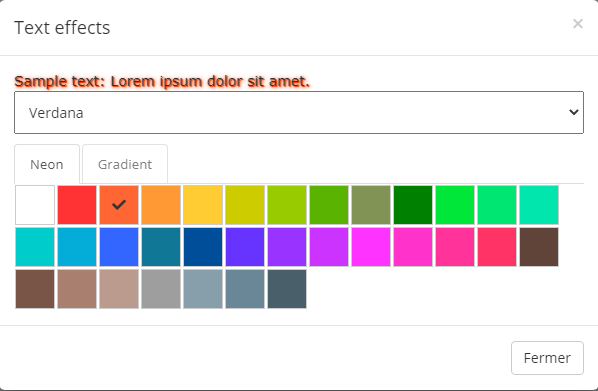
When you click that Text effects button, you will get a new modal window:

text effects

When you can choose Neon, Gradient and also change the font name.

Notice that you can still combine that with Bold, Italic or Underlined effects and also with the color picker

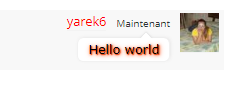
Now, you can send some special text effects such as:

Type of of chat in Mobile

We have added a new feature to HTML5 chat that allows to change the type of of chat for mobile: if you use draggable webcam or draggable windows on desktop version, you will notice that for mobile, this is not really user friendly : draggable cams take a lot of space and prevents you to open more than 1 webcam at once.

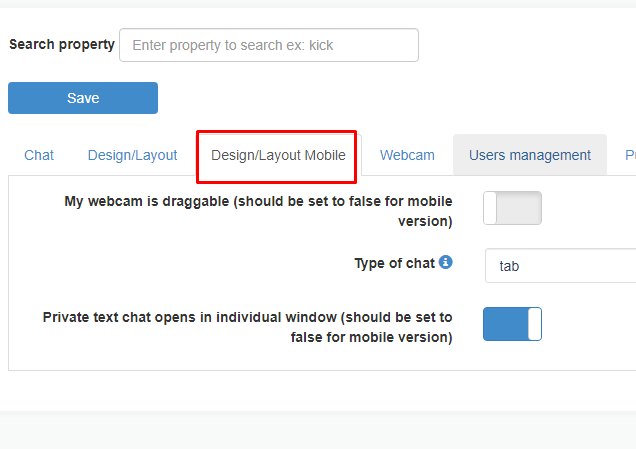
We have added 1 new tab that regroups 3 different properties for mobile:

My webcam is draggable : should be set to false: that way the cam is small and stays docked into the users list

Type of chat : we recommend wall or vertical wall or zoom: that way cams does not take too much space

Private text opens in new windows: we recommend to set to False : that way private chats will open in tabs and you will have more space

mobile css
New mobile tab
youtubeSEarch

Using youtube Search API

You can now enable Youtube Search API to add youtube searching.

First you need to get your personal youtube API key from : https://developers.google.com/youtube/v3/getting-started

Once you got that key (ex: AIzaSyBsdbcJ1YhvG64t9n541CqOHcXiXXXXXX), you can update your chat config and set that key.

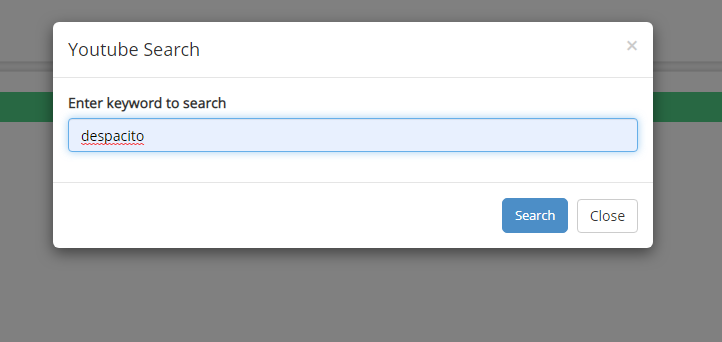
Now, anytime you press the youtube button, you will be prompted to enter the search keyword.

Input search modal
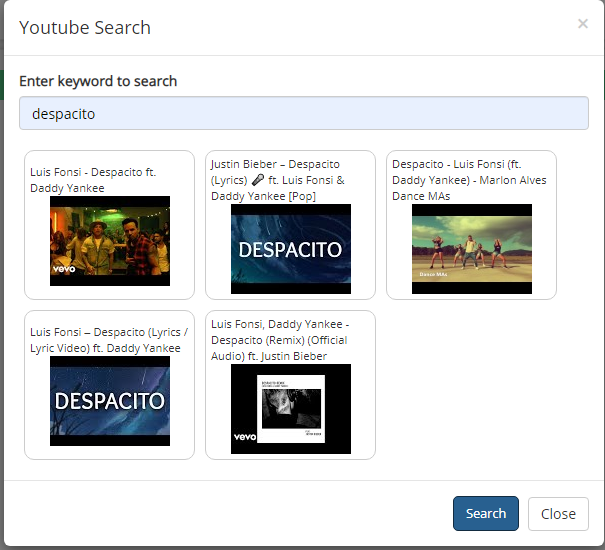
Youtube search
Results of the youtube search.

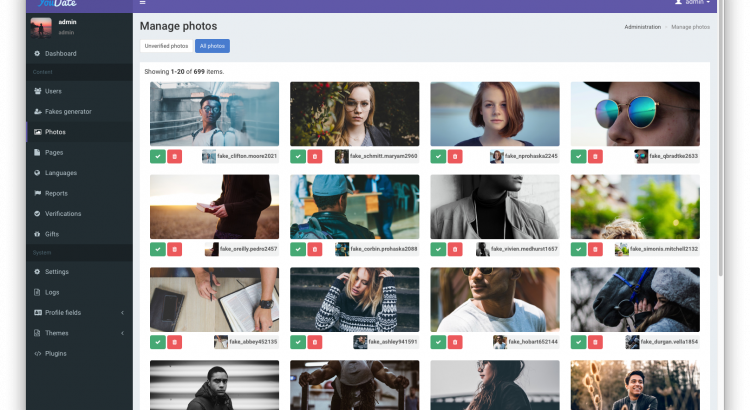
Intergration with youdate.website

Youdate.website is a small CRM for dating written with Yii framework

Here is a quick way to integrate html5-chat with youdate


<?php
require(__DIR__ . '/application/bootstrap.php');
require(__DIR__ . '/application/vendor/autoload.php');
require(__DIR__ . '/application/environment.php');
require(__DIR__ . '/application/vendor/yiisoft/yii2/Yii.php');
require(__DIR__ . '/application/controllers/PhotoController.php');
$config = require(__DIR__ . '/application/config/web.php');
$application = new yii\web\Application($config);
$user = Yii::$app->user;
if (!$user) {
   exit();
}
$username = Yii::$app->user->identity->profile->name;
$photo_id = Yii::$app->user->identity->profile->photo_id;
$sex = Yii::$app->user->identity->profile->sex;
$role = Yii::$app->user->identity->profile->status;
$photo = (new \yii\db\Query())
->select(['id', 'source'])
->from('photo')
->where(['id' => $photo_id])
->one();
$image = ($photo) ? "http://yoursitehere.com/content/photos/{$photo['source']}" : '';
$webmasterid = XXXXXXX;
$gender = 'male';
switch ($sex) {
   case 2:
      $gender = 'female';
      break;
   case 11:
      $gender = 'couple';
      break;
   case 12:
      $gender = 'trans';
      break;
}
$myuser = [
   'username' => $username,
   'gender' => $gender,
   'role' => 'user',
   'image' => base64_encode($image),
   'password' => 'YourHTML5ChatPassword',
];
$json = json_encode($myuser);
$encoded = file_get_contents("https://jwt.html5-chat.com/protect/" . base64_encode($json));
?>
<!doctype html>
<html lang="en">
<head>
   <meta charset="UTF-8">
   <meta name="viewport" content="width=device-width, user-scalable=no, initial-scale=1.0, maximum-scale=1.0, minimum-scale=1.0">
   <meta http-equiv="X-UA-Compatible" content="ie=edge">
   <title>Webcam chat</title>
   <style>
      body, html, #chatContainer {
         width: 100%;
         height: 100%;
      }
   </style>
</head>
<body>
<div id="chatContainer">
   <script src="https://html5-chat.com/script/<?= $webmasterid ?>/<?= $encoded ?>"></script>
</div>
</body>
</html>
background image

Custom backgrounds

We have added a new feature: custom backgrounds.

You can now add your OWN backgrounds images so your chatter can change themselves the look&feel of your chat.

To add that your own backgrounds images: go to chatadmin panel.

You will find the new background button block. You just have to upload your own backgrounds there.

Chatters will be able to switch between these uploaded backgrounds in the chat (chat settings button).

background photo