If you are building a video chat, WebRTC application, or live streaming platform, you may encounter the following error in your browser console:
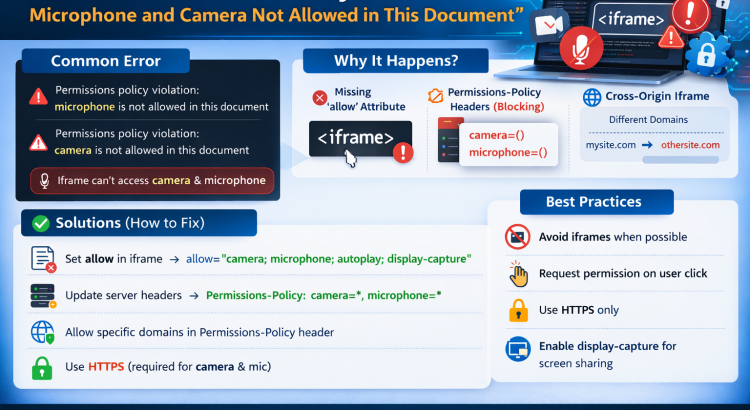
Permissions policy violation: microphone is not allowed in this document
Permissions policy violation: camera is not allowed in this document
This error commonly appears when accessing microphone or camera inside an iframe, especially in WebRTC applications such as video chats, conferencing platforms, or live streaming tools.
In this article, we will explain:
- What this error means
- Why browsers block camera and microphone in iframes
- How to fix the problem correctly
- Best practices for WebRTC applications
What Does the Permissions Policy Error Mean?
Modern browsers such as Chrome, Edge, and Firefox enforce strict security rules for sensitive devices like:
- Microphone
- Camera
- Screen capture
- Geolocation
These features are controlled by something called the Permissions Policy (previously known as Feature Policy).
When a website tries to access the camera or microphone inside an iframe, the browser checks whether the parent page allows it.
If permission is not granted, the browser blocks the request and generates the error:
Permissions policy violation: microphone is not allowed in this document
This means the iframe does not have permission to access the device.
Why This Error Happens
There are several common reasons why this issue occurs.
1. Missing allow Attribute in the iframe
The most common cause is that the iframe does not explicitly allow access to the camera and microphone.
Example of a basic iframe:
<iframe src="https://example.com/video-chat"></iframe>
This iframe will not allow camera or microphone access.
To fix this, you must explicitly grant permissions.
Correct version:
<iframe
src="https://example.com/video-chat"
allow="camera; microphone">
</iframe>
This tells the browser that the iframe is allowed to request those permissions.
2. Permissions Policy HTTP Header Blocking Devices
Even if your iframe is configured correctly, your server may still block device access using a Permissions-Policy HTTP header.
Example of a restrictive header:
Permissions-Policy: camera=(), microphone=()
This configuration explicitly disables camera and microphone for the entire page, including embedded iframes.
To fix this, update your server configuration.
Example for Apache:
Header set Permissions-Policy "camera=*, microphone=*"
Or allow a specific domain:
Header set Permissions-Policy "camera=(self https://example.com), microphone=(self https://example.com)"
This allows the iframe to access devices.
3. Cross-Origin iframe Restrictions
Browsers apply additional security restrictions when an iframe loads content from another domain.
For example:
Parent site:
https://mysite.com
Iframe content:
https://html5-chat.com
Because the iframe is cross-origin, the browser requires explicit permission through the allow attribute.
Correct configuration:
<iframe src="https://html5-chat" allow="camera; microphone; autoplay">
</iframe>
Without this attribute, camera and microphone access will be blocked.
4. Security Plugins or Reverse Proxies
Sometimes the issue is caused by security middleware rather than your code.
Examples include:
- Cloudflare security headers
- WordPress security plugins
- Nginx reverse proxy headers
- Content Security Policy rules
These systems may automatically add restrictive headers like:
Permissions-Policy: camera=(), microphone=()
To diagnose this issue, inspect your response headers using the browser developer tools.
How to Diagnose the Problem
Follow these steps to identify the cause.
Step 1 — Open Developer Tools
Press:
F12
Then open the Network tab.
Select your page request and inspect the Response Headers.
Look for:
Permissions-Policy
If you see:
camera=()
microphone=()
then your server is blocking device access.
Step 2 — Test the Page Without an iframe
Open the video chat page directly:
https://html5-chat/chat
If camera and microphone work normally, the problem is specifically related to the iframe configuration.
Best iframe Configuration for WebRTC Applications
For applications using WebRTC, video streaming, or live chat systems, your iframe should include all necessary permissions.
Example:
<iframe src="https://example.com/video-chat" allow="camera; microphone; autoplay; display-capture" allowfullscreen style="width:100%; height:100%; border:0;">
</iframe>
This configuration allows:
- Camera access
- Microphone access
- Autoplay media
- Screen sharing
Best Practices for Video Chat Platforms
If you are building a platform using WebRTC, mediasoup, or WebSockets, consider the following best practices.
Avoid unnecessary iframes
Camera access is generally more reliable when the application runs directly on the page rather than inside an iframe.
Always use HTTPS
Browsers block microphone and camera access on insecure connections.
Your application must run on:
https://
Request permissions only when needed
Instead of requesting camera and microphone immediately, request them when the user clicks a button such as:
Start Camera
Join Video Chat
Start Streaming
This improves user experience and reduces permission denial.
Conclusion
The error “Permissions policy violation: microphone or camera is not allowed in this document” is a common issue in modern web applications that use video, audio, or WebRTC technologies.
The problem usually comes from one of three sources:
- Missing
allowattributes in the iframe - Restrictive
Permissions-PolicyHTTP headers - Cross-origin iframe security restrictions
By properly configuring your iframe permissions and server headers, you can ensure that your application can access the camera and microphone without issues.
This is especially important for platforms that rely on live streaming, video conferencing, or real-time chat systems.