ordering

How to sort users by role ?

It is now possible to sort user by role.
ex: you need admin to be displayed before moderators, then users then guests.

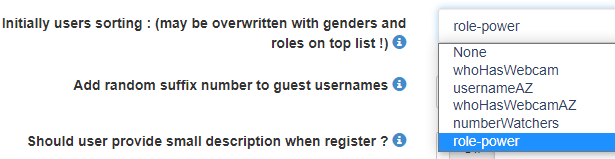
In your config panel, choose config, under tab “users” you can now choose: sorting by role-power

Sorting users by role-power

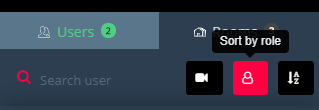
Then you just need to click the role sorting button in your chat and users will be ordered by their roles.

Notice that you can define what role should be displayed in priority: roles have “power” property (you can find that in roles in you chat panel). Ex: admin has role of 9 (high priority) and guest has role of 0 (low priority). You can change these priorities by editing the power field.

Sorting by role button on the chat
user Info

Add user info

User info icon and data

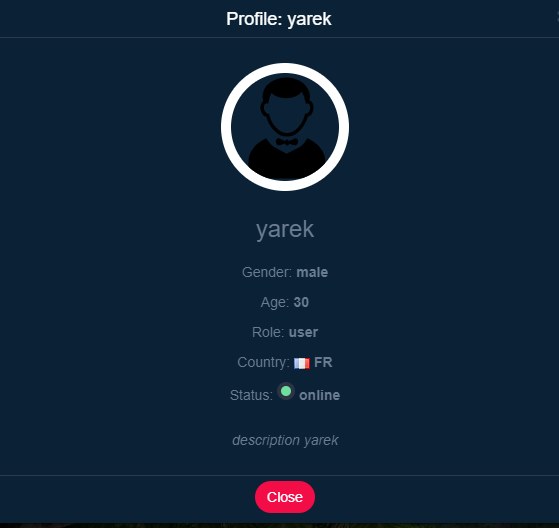
You can now enable info window modal (show profile of user) in html5 chat.
Steps:

  1. Enable that in your config : chatadmin/config/users
  2. A new info button will appear in users list userList
  3. If you click on that button, you will get the user info
    userInfo

Description Field

Notice that there is a new fields added to user’s properties called “description“. This is a field user can fill when he registers the chat, or you can also pass it as JWT parameter
To enable that field, you need to to to /chatadmin/config/users management and enable “Should user provide small description when register 

volume2

Display Volume on cams

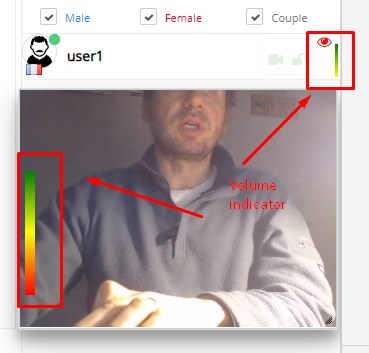
You can now have a visual volume indicator inside any webcam.

To enable that feature, go to chatadmin/config/webcam and set
Display user volume

The volume will be displayed inside the webcam and inside the userlist

Volume indicator…

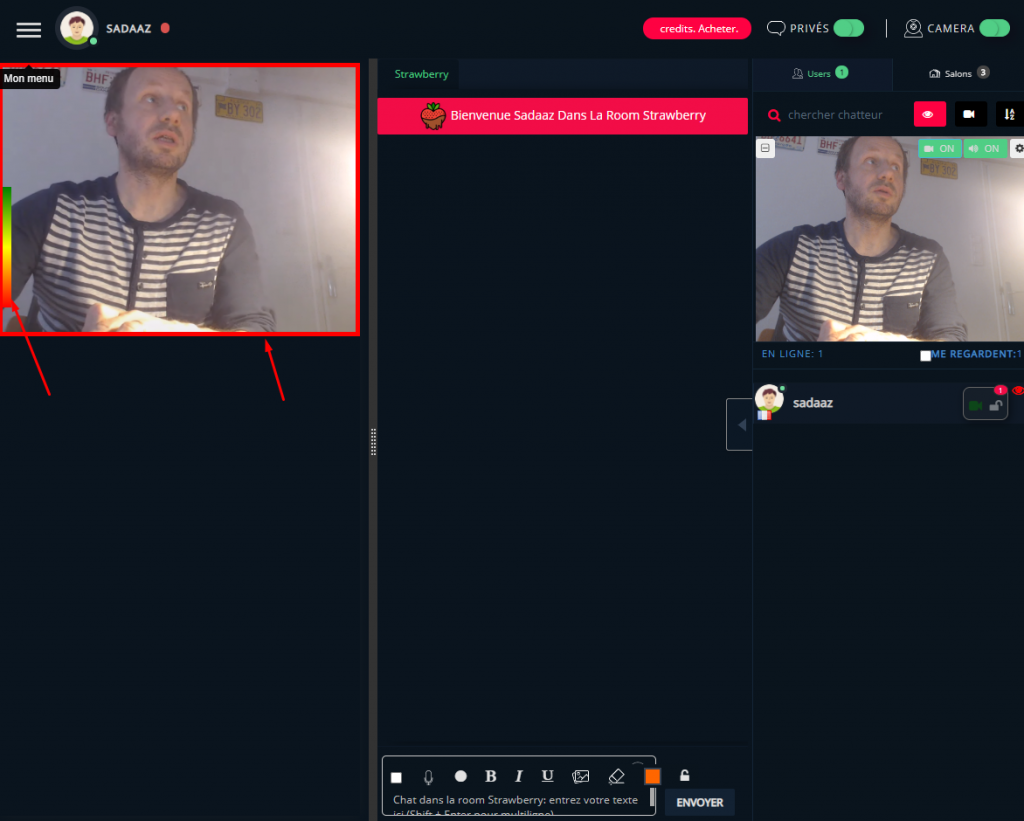
You can also display an effect on video (red border) when volume is detected (when user speaks or streams sound): you have to check this propetry:

Add red border on webcam when volume detected (addEffectOnVolumeDetection) in chatadmin/config/webcam

Red border effect on volume detection.
chamaelon

Integrate HTML5 chat with chameleon software online

Here is the step to integrate html5 chat with https://www.chameleonsoftwareonline.com/

Create html5chat.php on root and paste there this code:

<?php
if (empty($_GET['cmd']) || $_GET['cmd'] != 'lang')
    $area = "login";
include("./_include/core/main_start.php");
include("./_include/current/menu_section.class.php");
$_GET['display'] = get_param('display', User::displayProfile());
$where = ' u.user_id = ' . to_sql(guid(), 'Number');
$webmasterid = xxxxx;
$password = "yyyyyy";
$id = $GLOBALS['g_user']['user_id'];
$avatars = glob("_files/photo/" . $id . "_*_m.jpg");
$avatar = (count($avatars)) ? "//{$_SERVER['SERVER_NAME']}/" . $avatars[0] : '';
switch($GLOBALS['g_user']['gender']) {
case 'C':
$gender = 'male';
break;
case 'F':
$gender = 'female';
break;
default:
$gender = 'male';
break;
}
$myuser = array(
    'username'  => $GLOBALS['g_user']['name'],
    'password'  => $password,
    'gender'    => $gender,
    'role'      => $GLOBALS['g_user']['role'],
    'image'     => $avatar,
    'profile'   => base64_encode("//{$_SERVER['SERVER_NAME']}/users_online.php?display=profile&uid=$id&offset=1")
);
$json = json_encode($myuser);
$encoded = file_get_contents("https://jwt.html5-chat.com/protect/" . base64_encode($json));
?>
<!doctype html>
<html lang="en">
<head>
    <meta charset="UTF-8">
    <meta name="viewport" content="width=device-width, user-scalable=no, initial-scale=1.0, maximum-scale=1.0, minimum-scale=1.0">
    <meta http-equiv="X-UA-Compatible" content="ie=edge">
    <title>Webcam Chat</title>
    <style>
        html, body {
            width: 100%;
            height: 100%;
        }
    </style>
</head>
<body>
    <script src="https://html5-chat.com/script/<?=$webmasterid?>/<?= $encoded ?>"></script>
</body>
</html>

Replace xxxx and yyyy by your webmasterid and your html5-chat password account.

signup

How to incite a guest user to register ?

There is a new interesting feature in html5 chat to improve your registration rate. You can now disconnect a role from the chat after N seconds and redirect him to an Url

We think of course about the guets role, than will be disconnected from the chat after N m minutes and will be redirected to the registration page.

You can do that now in roles: there are 2 new properties in your chatadmin / roles panel -> Ads and messages tab

disconnectAfterNSeconds : ex: for 3 minutes, set 180 (180 seconds = 3 minutes)

redirectAfterDisconnection (put full http path like: https://www.rezocoquin.com)

wall layout

The “Wall” layout

We have added a new layout called “wall“.

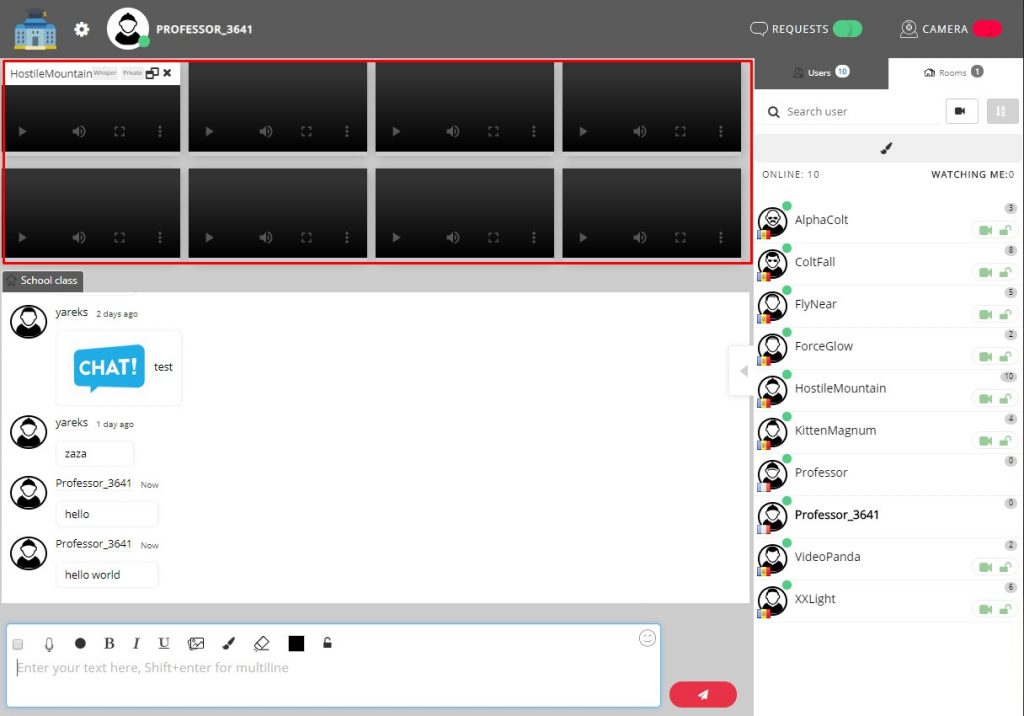
This layout allows to add camera in the top of the chat with a wrapping feature: when there is no more space for a cam, the new cam goes to the bottom, creating a “wall”.

This layout allows to watch many cams simultaneously without having to scroll or split views.

The WALL layout.

To change the layout of the chat, simply go to your chatadmin panel and choose the layout panel.

The wall layer can be useful for conferences when you need to watch at all participants at the same time.

ad

How to insert ad into chat ?

There are many ways to insert ads into chat. This is especially easy when you know some JS.

Remember: you can your OWN javascript into the chat.

If you want to insert ads inside the text chat, then you should use the news managements.

If you want some visual ad, there is a <div id=”ad”></div> present on the chat (on top right) when you can insert your ads. The best way to do that is also to insert your OWN javascript into the chat and with some code display the ads.

Here is a sample of how to randomly display 3 ads every 30 seconds:

$(document).ready(function () {
// list of ads !
let ads = [
"<a href='https://www.yoursite.com' target='_blank'><img src='https://www.yoursite.com/img/ad1.png'></a>",
"<a href='https://www.yoursite.com' target='_blank'><img src='https://www.yoursite.com/img/ad2.png'></a>",
"<a href='https://www.yoursite.com' target='_blank'><img src='https://www.yoursite.com/img/ad3.png'></a>",
];
setTimeout(function() {
let ad = randomAd = ads[Math.floor(Math.random() * ads.length)]; // pick a random ad
$('#ad').empty().append(ad);

} , 30 *1000); // loop every 30 seconds
});
Sorting

Initially sorting users

You can now decide how your users will appear in your user list.
They can initially be sorted by:

  • None : this is the default state: users will appear by history: the latest ones will be appended to the end of the list
  • username : users will be A-Z sorted by their username
  • webcams: those who have webcams will appear at the top of the lits
  • usernames and webcam : webcams first and then by username

You can set the initial sorting in your Chatadmin panel -> config -> Users Management